Catalogue · B

Personal tools

I built these tools for my own computer (Linux, Omarchy on Arch Linux) and use them every day. They were made the same way as the programs for offices: I design them, AI agents write the code, I test them.

B.01 · Personal

Explorer 3000

The file manager I use instead of the built-in one. It takes its colours from the desktop theme, shows sizes for folders too, and lets you pin files and folders to the top of the folder they are in.

In the screenshot

  • Toolbar with back, forward and up, and a clickable path.
  • Pinned folders and the computer's drives in the sidebar.
  • A star on each row pins that file or folder to the top of its folder.
  • The size column counts everything inside folders.
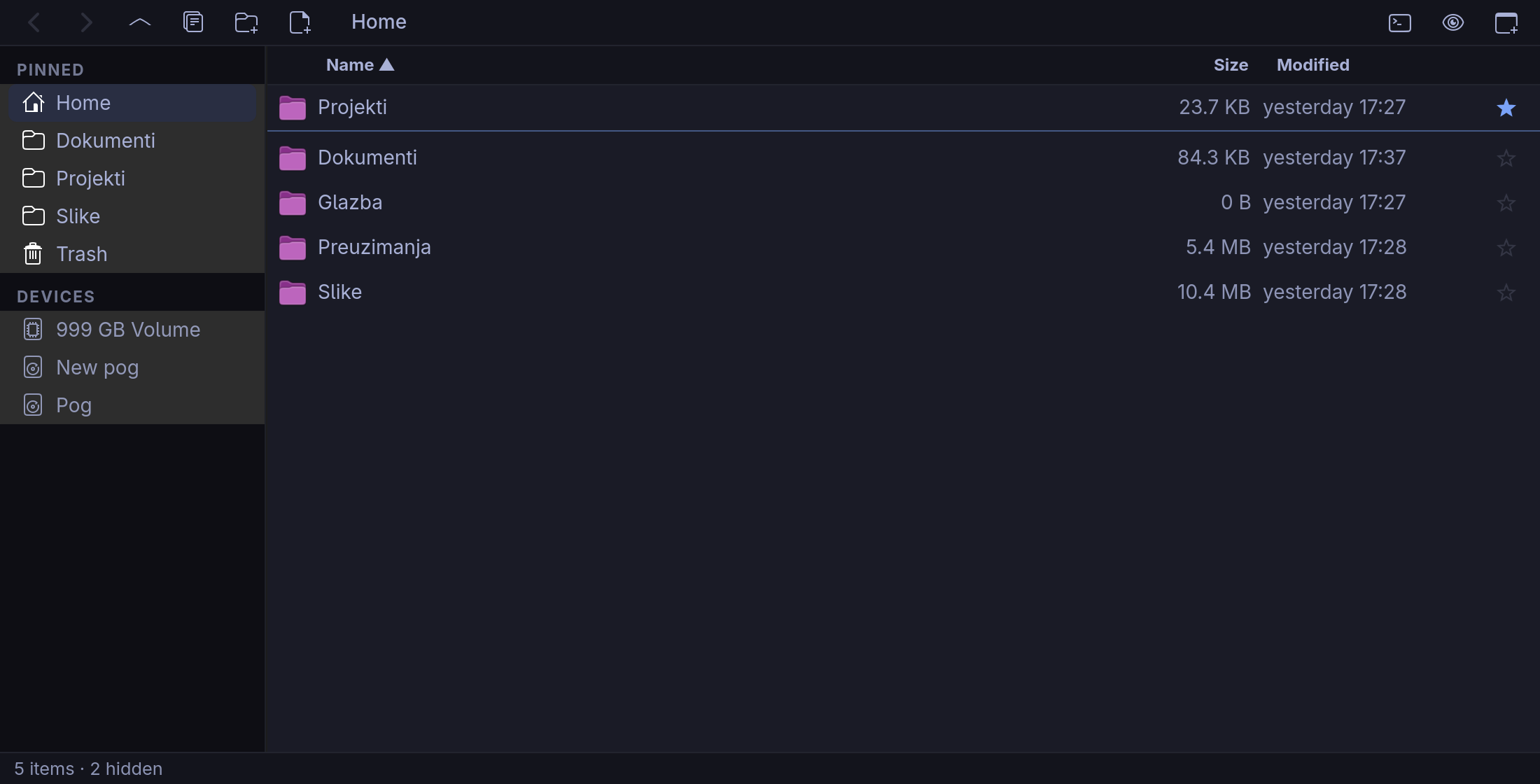
Explorer 3000 in the home folder, with a folder pinned to the top.
FIG. 1Home folder: Projekti pinned to the top, sizes counted for folders too.
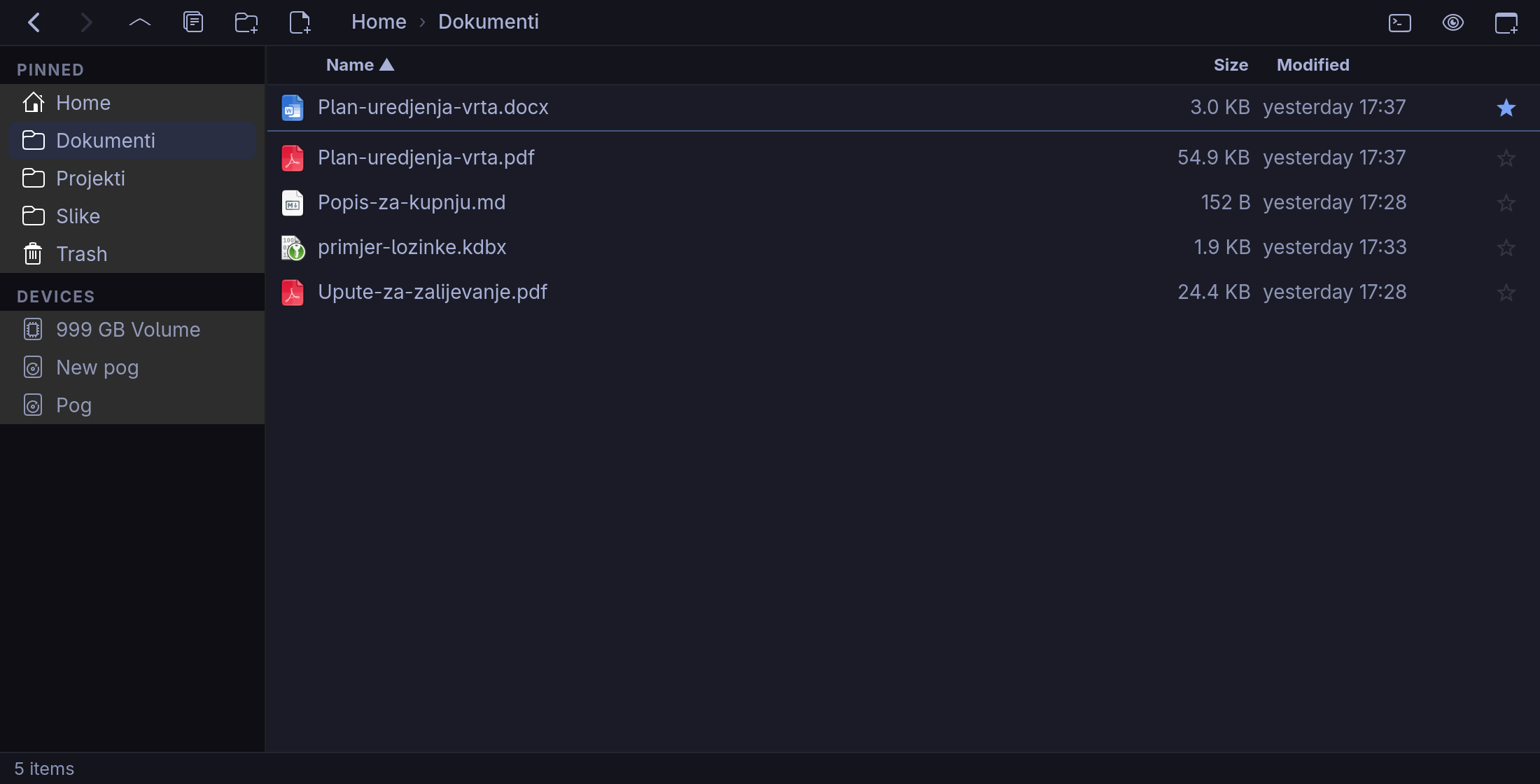
Explorer 3000 in the Dokumenti folder.
FIG. 2The Dokumenti folder, with a Word file pinned to the top.

B.02 · Personal

Sef

A password manager that works on a standard KeePass (.kdbx) file. It has its own Chrome extension that fills passwords into login forms.

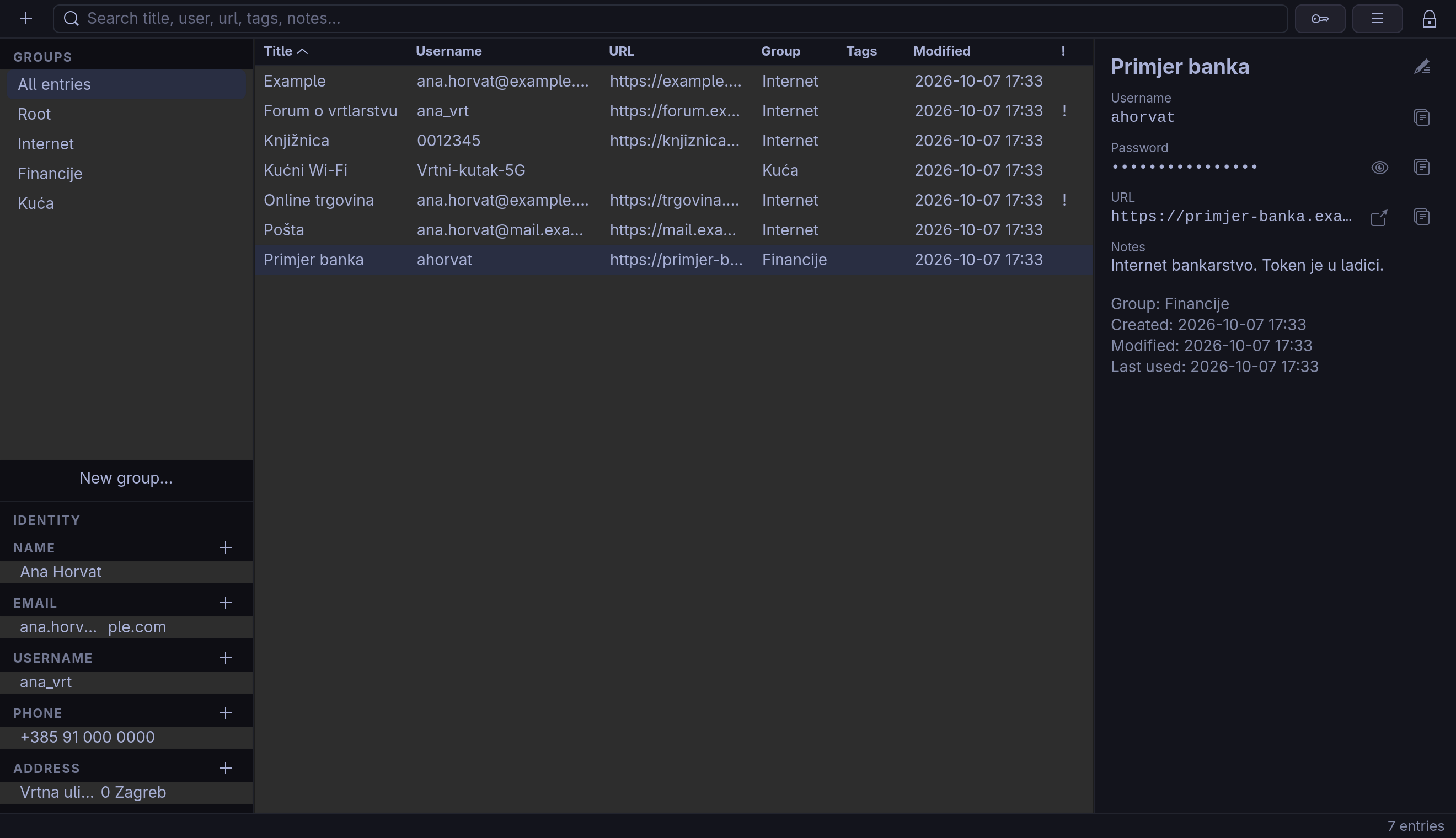
In the screenshot

  • Groups on the left, entries in the middle, details on the right.
  • The password is masked, with buttons to show and copy it.
  • An exclamation-mark column flags weak or reused passwords.
  • An identity section for filling in web forms.
Sef with a sample password vault unlocked and one entry selected.
FIG. 3A sample vault, unlocked: groups, entries and the details of the selected entry.

B.03 · Personal

Pero

An editor for Word (.docx) documents that lays out the pages with its own engine. It opens, edits and saves real Word files.

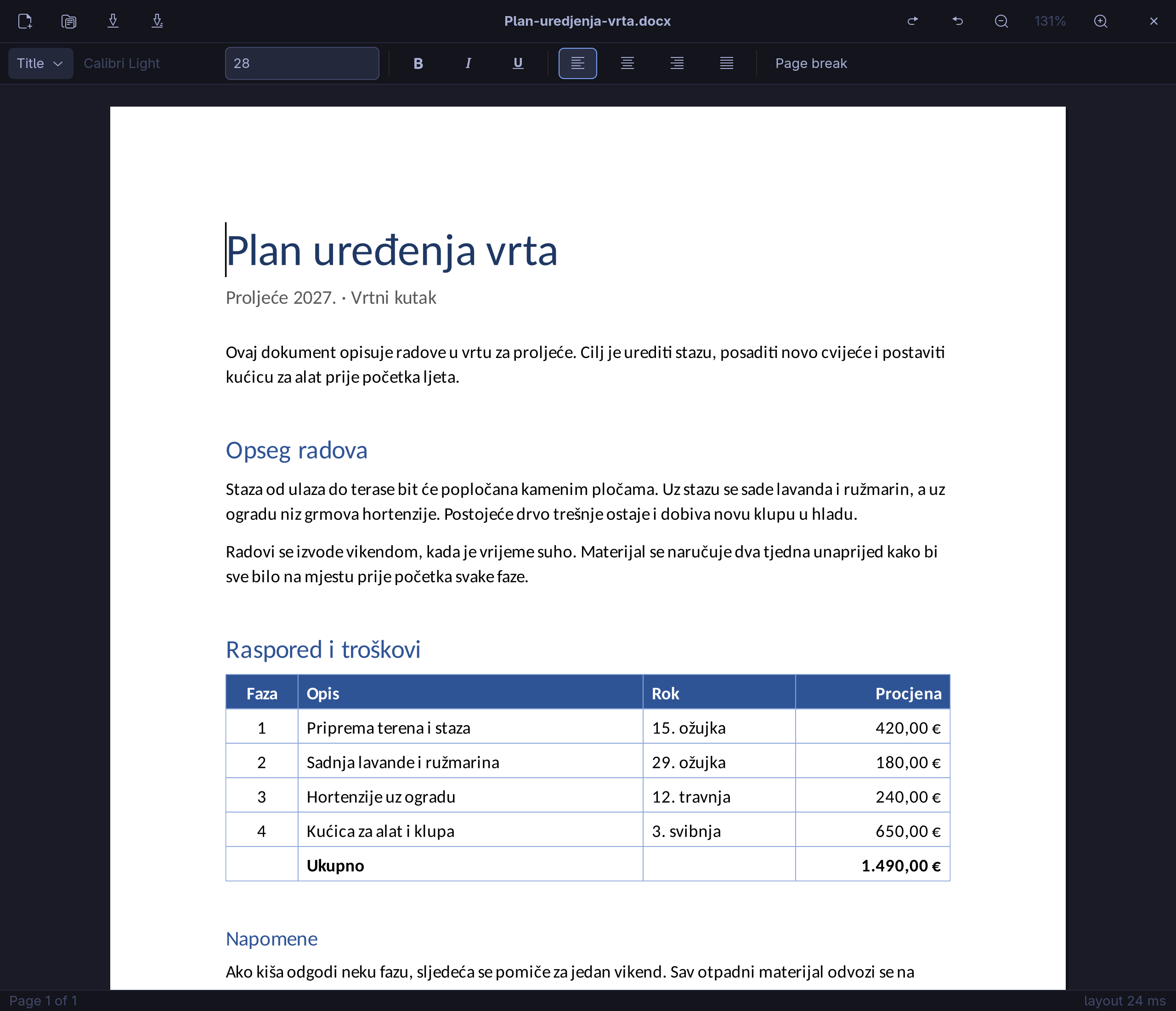
In the screenshot

  • The document shown as a real page, with the file's own styles.
  • Headings, paragraphs and a table with a shaded header row.
  • Toolbar with style, font, size, alignment and page break.
Pero showing a Word document as a page with headings and a table.
FIG. 4A sample Word document laid out as a real page, with headings and a table.

B.04 · Personal

ChatDesk

An overlay on the desktop that combines a file explorer, a text editor and an AI chat. The chat edits only the file that is open in the editor.

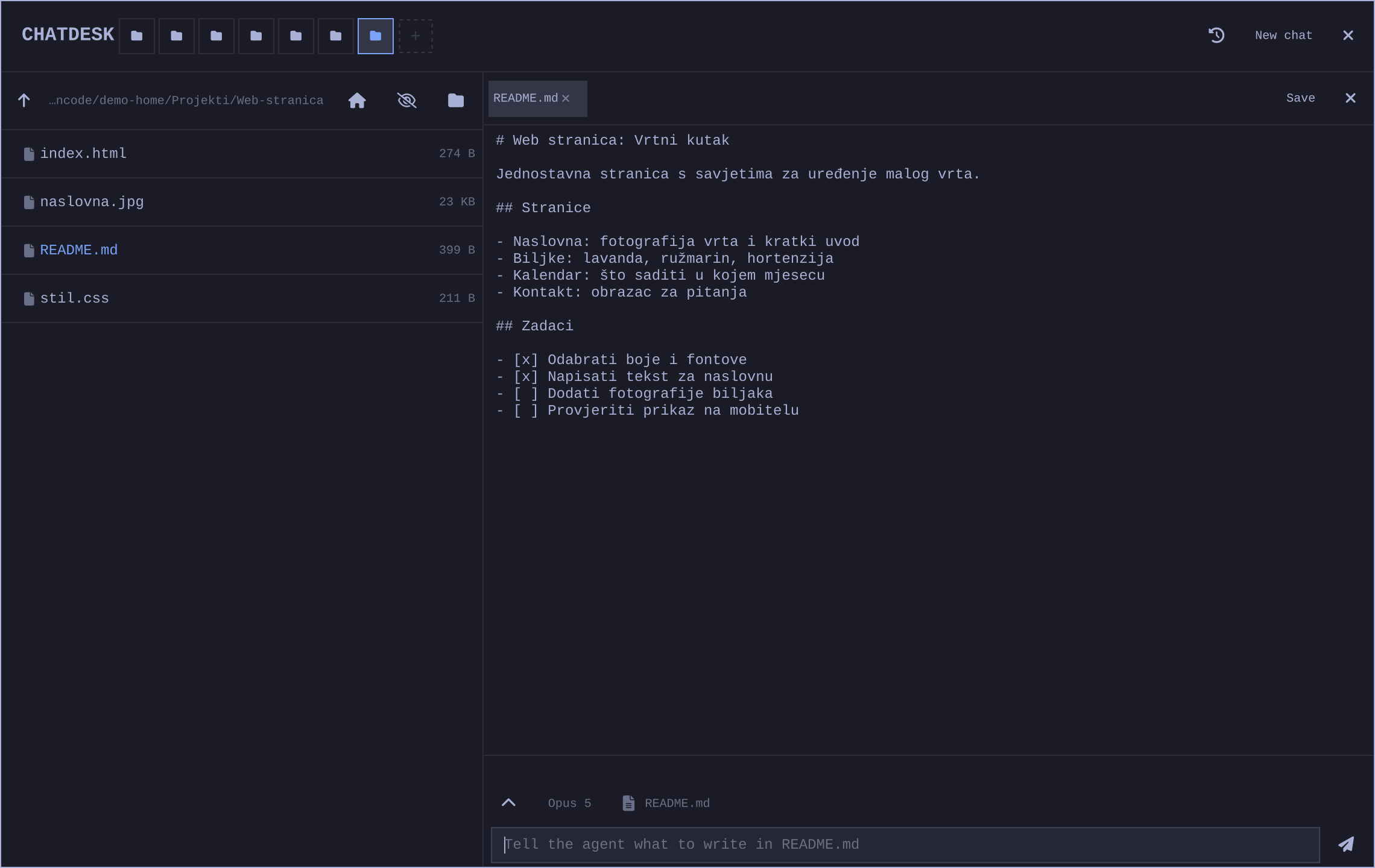
In the screenshot

  • Project folder on the left, the open file in an editor tab.
  • A chat bar tied to the open file, with a model picker.
  • Chat history and new chat in the header.
ChatDesk with a file explorer, an open file and the chat bar.
FIG. 5A sample project folder, README.md open, and the chat tied to it.

B.05 · Personal

File Tray

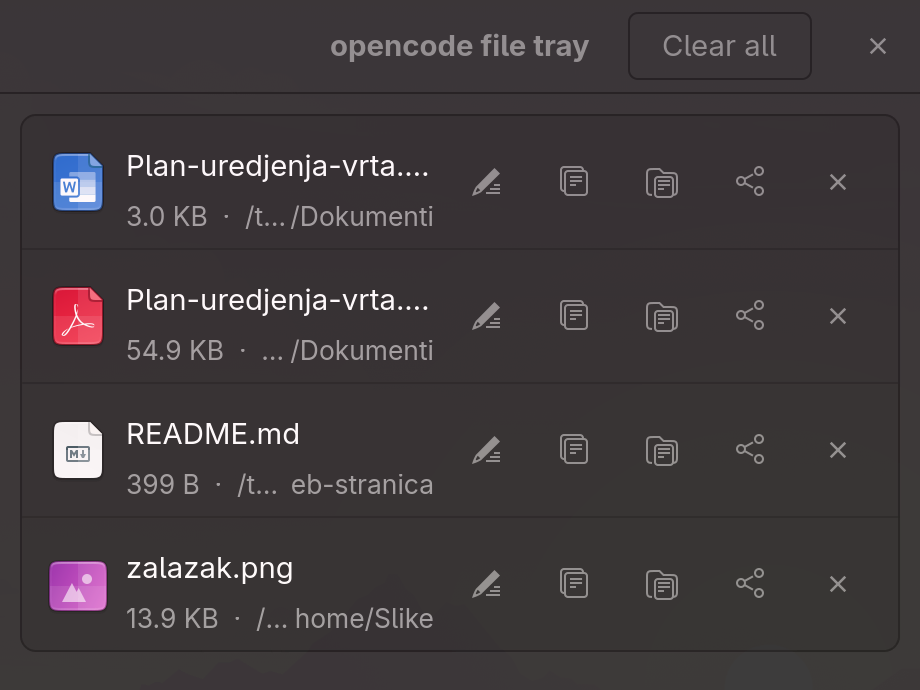
When an AI agent produces a file I need, it hands it to me through this tray on the desktop. From there I can open it, copy it or send it on.

In the screenshot

  • Each row: file type, name, size and folder.
  • Buttons to rename, copy, open, send to a shared folder on another PC, and remove.
  • One button empties the whole tray.
File Tray with four files and buttons next to each.
FIG. 6The tray with four files handed over by agents, each with buttons to rename, copy, open, send to another computer and remove.

B.06 · Personal

Usage Ring

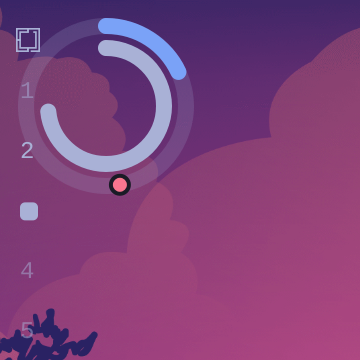
Two thin arcs in the corner of the screen. One shows how much of the AI usage limit is used, the other how much of that time window has passed. At a glance I can see whether I am using it faster than time is passing.

In the screenshot

  • Outer arc: the share of the limit used.
  • Inner arc: the share of the window that has passed.
  • No text and no background, only the two arcs.
Two thin arcs in the top-left corner of the screen.
FIG. 7Usage Ring in the screen corner, next to the workspace numbers.

B.07 · Personal

Video Backgrounds

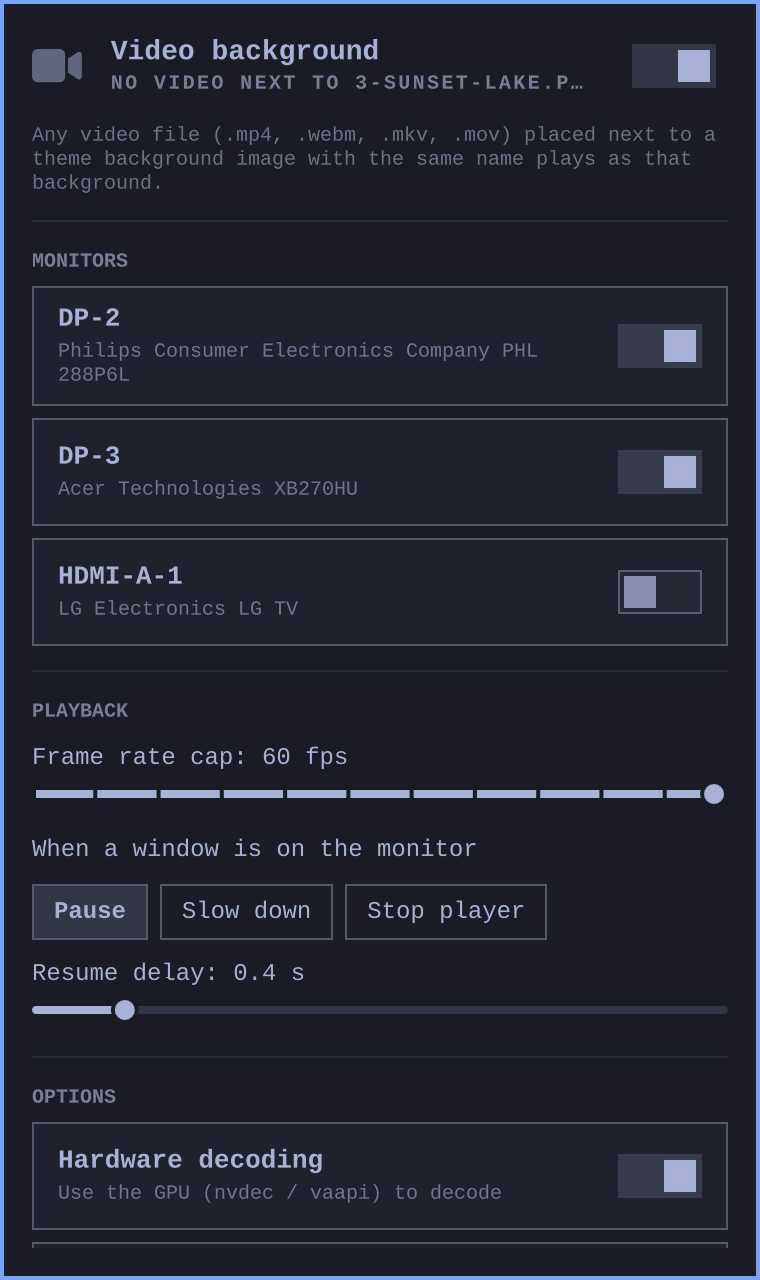
Video wallpapers that follow the chosen desktop theme: if a video with the same name sits next to the theme's background image, the video plays in its place.

In the screenshot

  • An on/off switch for each monitor.
  • A frame rate cap.
  • What to do when a window covers the monitor: pause, slow down or stop.
The video wallpaper settings panel with a switch for each monitor.
FIG. 8The video wallpaper panel: monitors, frame rate, and what happens when a window covers the monitor.

B.08 · Personal

Mouse G502

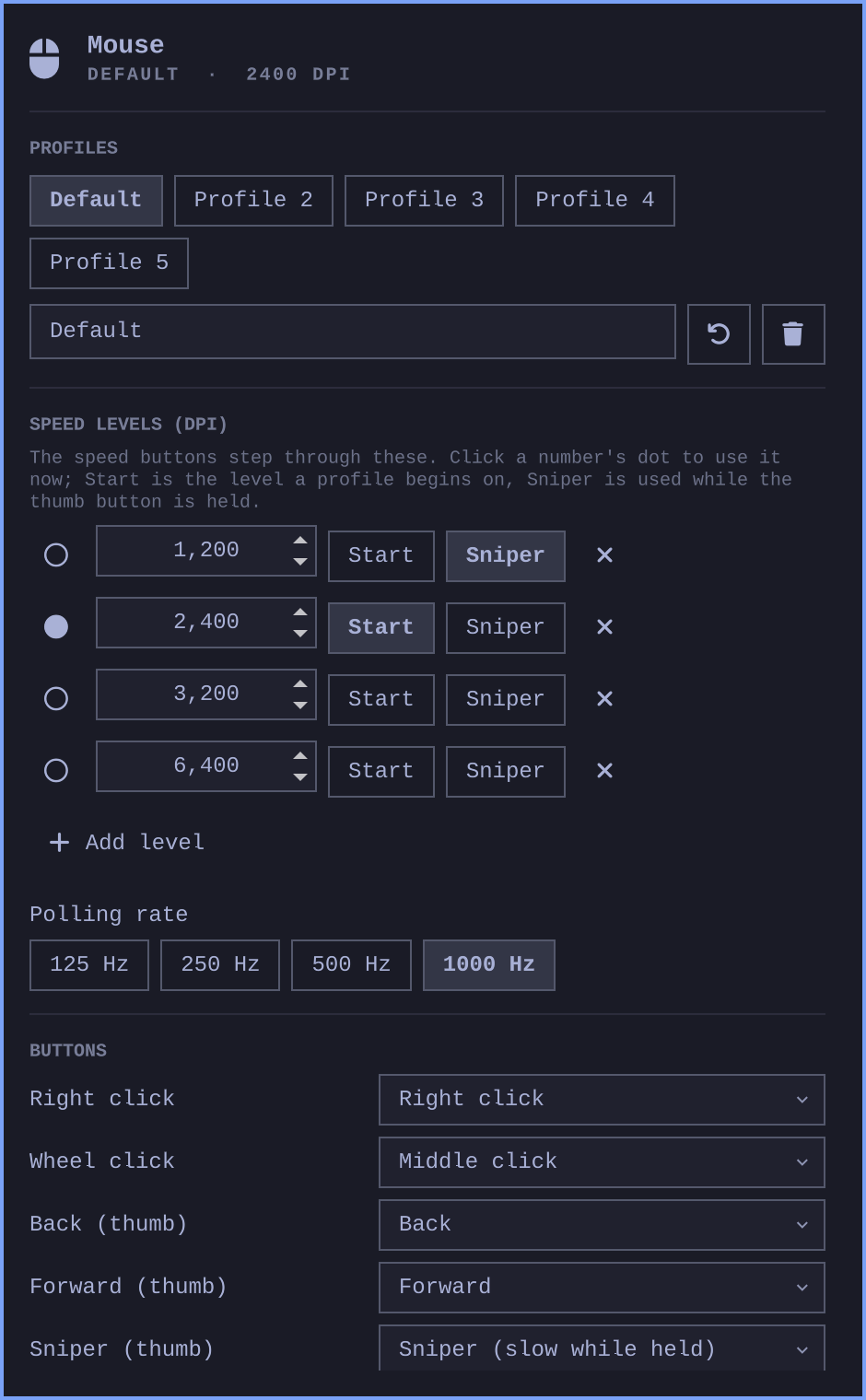
It replaces Logitech's mouse software, which does not exist for Linux. Profiles, DPI levels and button mapping are written into the mouse's own memory.

In the screenshot

  • Five profiles stored in the mouse.
  • Speed (DPI) levels, with a starting level and a precision level.
  • Polling rate and button mapping from drop-down menus.
The Logitech G502 settings panel with profiles and DPI levels.
FIG. 9The mouse panel: profiles, speed levels, polling rate and button mapping.

B.09 · Personal

Wootarchy

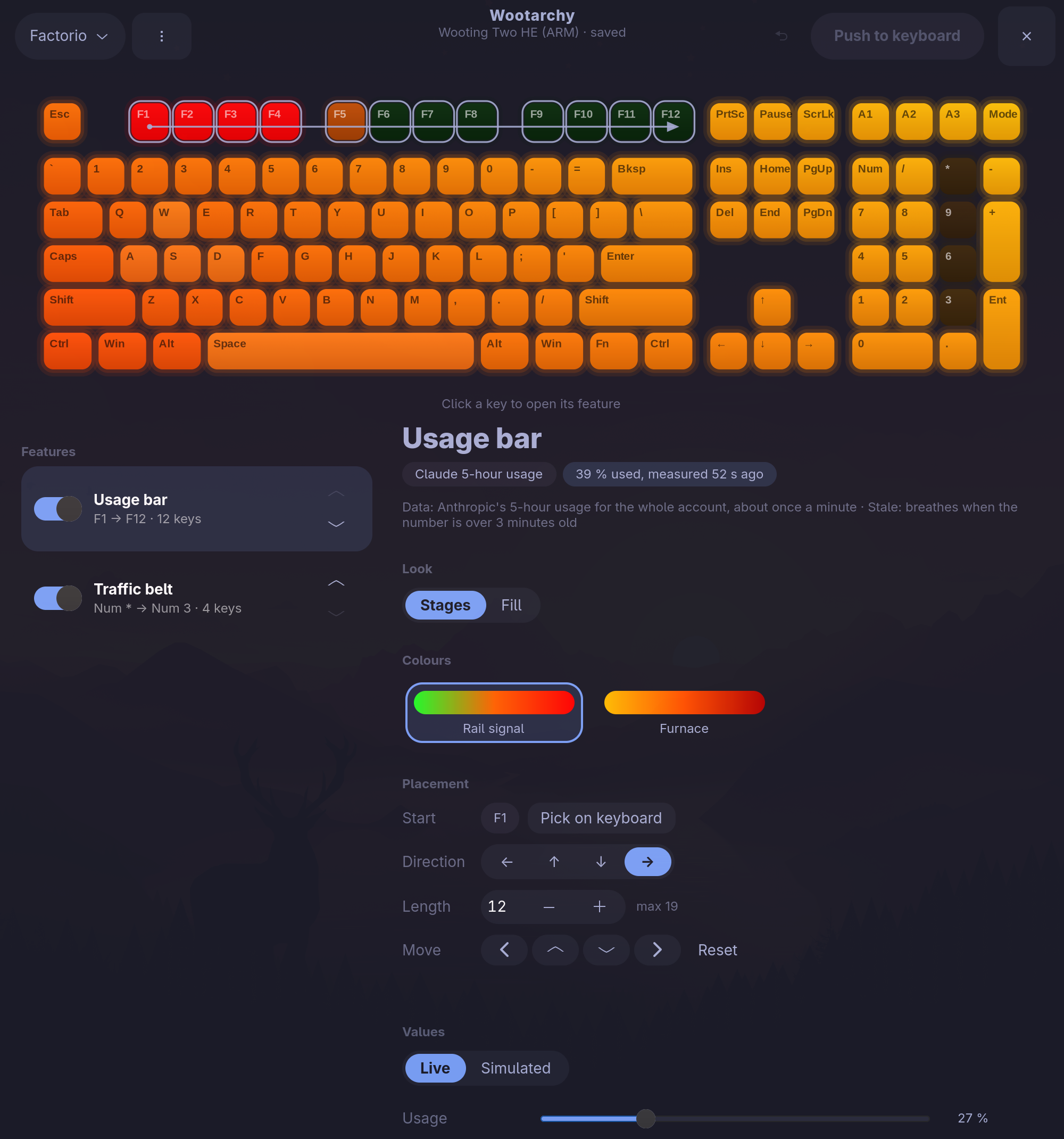
It runs the lighting on my Wooting keyboard. The window is a catalogue of features: each feature (for example an AI usage bar, or a moving light strip whose speed follows AI traffic) is drawn on a line of keys that can be moved and resized, has its own looks and colour themes, and documents itself in the window. Changes show live on the keyboard while editing, and "push" saves them.

In the screenshot

  • The on-screen keyboard glows in the same colours as the real one.
  • A list of features with on/off switches and their order.
  • For the selected feature: look, colour themes, start key, direction and length.
The Wootarchy window with an on-screen keyboard and a feature list.
FIG. 10The feature catalogue: on-screen keyboard, feature list, and the settings of the usage bar on keys F1 to F12.

All data in the screenshots is made up.

Wheel or two fingers: zoom · drag: move · Esc: close
↑